 middle place
Bring your Apple Journal, Day One or Markdown journal with you.
Apple’s Journal app is a lovely place to write, and it suggests moments from your photos and places. What it doesn’t do is write back. If you want a journal that answers and remembers, you shouldn’t have to leave years of entries behind to get one.
Updated 5 November 2026
Apple Journal vs middle place
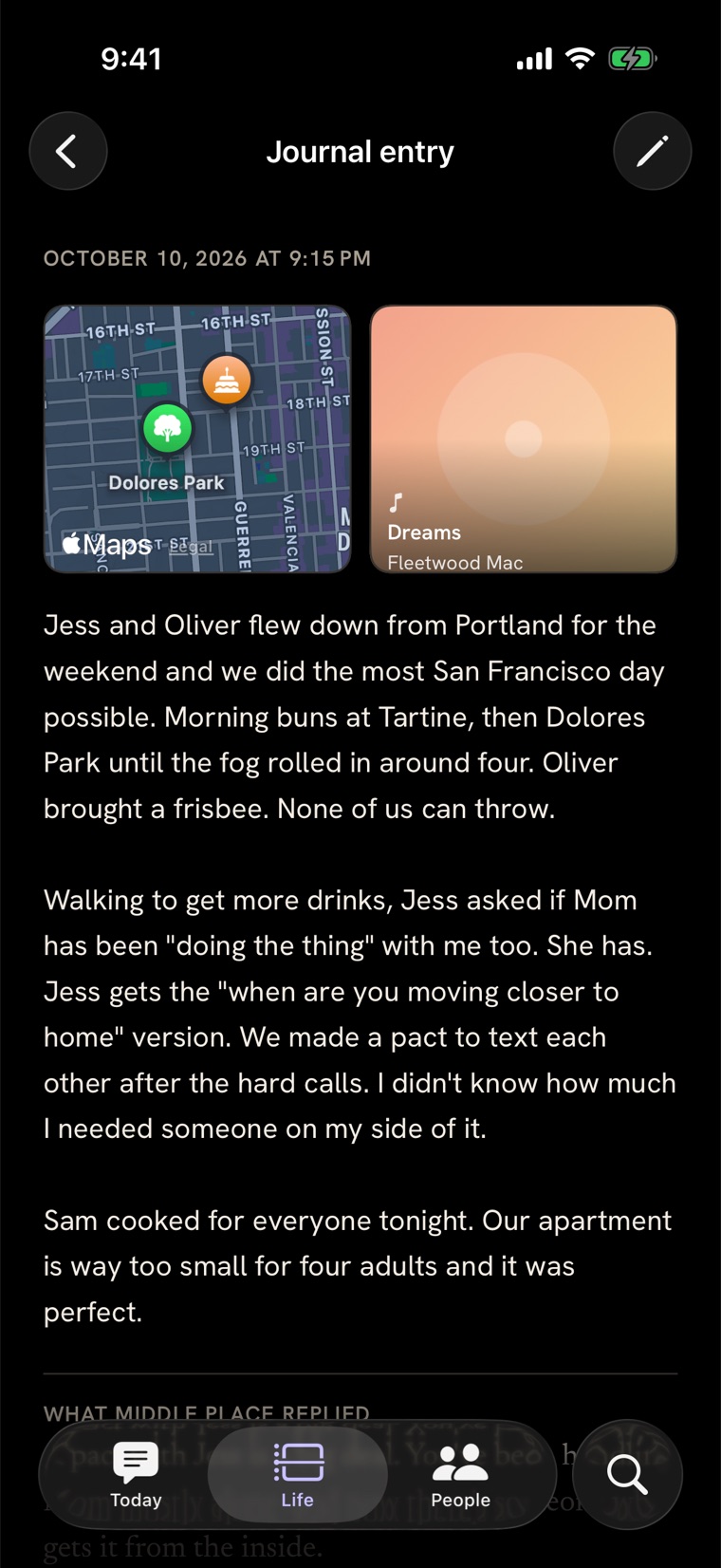
They’re built for different things. Apple Journal is a free, private, built-in journal with on-device suggestions. middle place is a journal with an AI that replies to what you write, keeps notes on the people and plans you mention, and builds a timeline of your life from them. Plenty of people keep using both.
| Apple Journal | middle place | |
|---|---|---|
| Replies to entries | No | Yes, with your context |
| Remembers people and plans | No | Yes, visibly and editable |
| Suggestions from photos and places | Yes, on device | Add photos, places and songs to entries |
| Search | Yes | Search by meaning, on device, plus Ask |
| Devices | iPhone, iPad, Mac | iPhone, iPad, Mac |
| Price | Free, built in | Free download |
How to import from Apple Journal
- Export from Journal. In Apple’s Journal app, export your journal and save it to Files. You’ll get a folder called AppleJournalEntries, or a .zip of it.
- Open middle place and go to You → Import journals (it’s also offered when you first set up the app).
- Choose the export: the AppleJournalEntries folder, or the .zip if it’s still zipped.
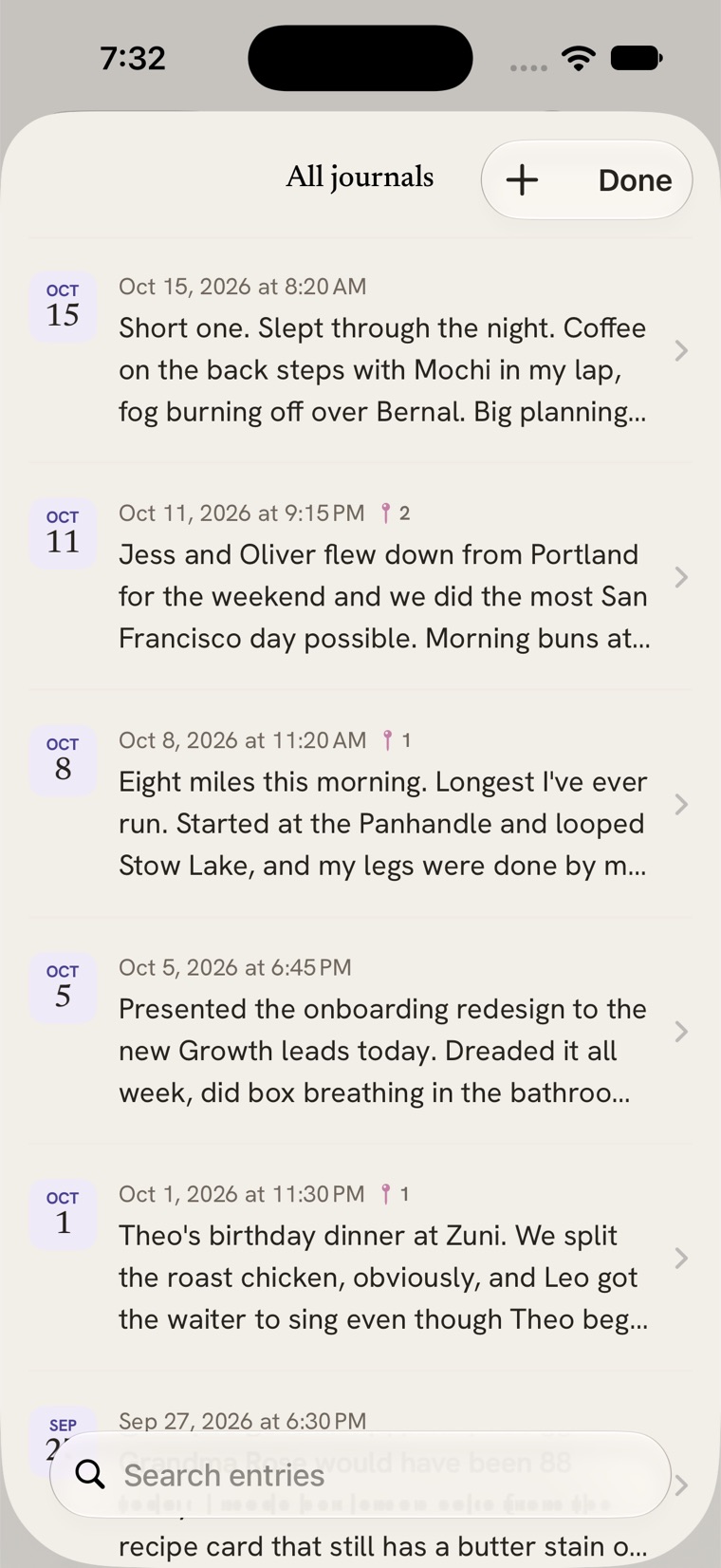
Each entry comes in on its own day with its photos, and a map’s first place comes in as the entry’s location. Voice notes are kept. Videos, songs, workouts and other cards stay in Apple Journal. Importing the same export again skips entries that are already there, so it’s safe to run twice.
How to import from Day One
- Export from Day One as JSON and save the .zip to Files.
- Open middle place and go to You → Import journals.
- Choose the .zip, or the folder if you’ve unzipped it.
Entries come in with their text, photos and audio recordings, and where each was written comes in as its place. Videos stay in Day One. Importing the same export again skips entries that are already there.
How to import a Markdown journal
If you’ve kept a journal in Obsidian, Bear, iA Writer, Notion or just a folder of text files, middle place reads that too: .md, .markdown and .txt files, a whole folder (subfolders included) or a .zip.
- Dates come from front matter (
date,created), a date in the file name or folders (like2024/03/05), or a date heading at the top. Failing those, the day the file was made. - Images your notes link to, as
or Obsidian’s![[photo.png]], come in as photos. - Formatting stays as you wrote it. Front matter is removed and a title heading loses its
#.
On Mac and iPad you can drop the folder straight onto the import screen. On iPhone, pick it from Files.
What happens to imported entries
Your export is read on your device and saved straight into your journal; the import itself never goes through our servers. Old entries don’t get replies. Like the rest of your journal, the AI may read them to fill in your timeline and summaries, and Ask can quote them when you ask about your past. That’s usually the point: after an import, “What was I worried about this time last year?” has an answer.
Import questions
Will importing delete anything from Apple Journal?
No. middle place reads a copy you exported. Your entries stay in Apple Journal (or Day One) untouched.
Can I import from Day One?
Yes. Export your Day One journal as JSON, save the .zip to Files, and choose it under You → Import journals. Text, photos, audio recordings and places come across; videos stay in Day One.
How long does an import take?
Text is quick; photos take a moment each. On iPhone and iPad it keeps going for a few minutes if you switch away, and anything already imported stays put if you stop.
Can I export my journal out of middle place later?
Yes. You can export your journal from the app at any time, and you’re offered an export before you delete your account.